 Kimiko
Meeting minutes are the shared record of what a meeting decided and who is doing what next. A consistent template means anyone who missed the meeting can catch up quickly.
Copy the meeting minutes template
Copy the template into your notes, a document or an email, or download it as a Markdown file. It works for team meetings, project check-ins, client calls and committee meetings.
# Meeting minutes

**Meeting:**

**Date and time:**

**Attendees:**

**Minutes taken by:**

## Purpose

## Discussion

-

## Decisions

-

## Action items

| Action | Owner | Due date |
| ------ | ----- | -------- |
|        |       |          |
|        |       |          |

## Open questions

-

## Next meeting

**Date and time:**

**To review:**

---

Template from kimiko.app
Fill in the header before the meeting starts, so you can focus on decisions and actions.
What to write in each section
Each section answers one question a reader will have later.
| Section | What to write |
|---|---|
| Meeting, date and time | The meeting’s name and when it happened |
| Attendees | Who took part, and who took the minutes |
| Purpose | One or two sentences on why you met |
| Discussion | A few lines per topic, with the facts that shaped a decision |
| Decisions | What the group agreed, each as a complete sentence |
| Action items | One task per row, with a single owner and a due date |
| Open questions | What came up but wasn’t settled |
| Next meeting | When you meet again and what you’ll review |
If a section has nothing in it, write “None”. An empty heading can look like something was forgotten.
A filled-in meeting minutes example
Here is the template filled in for an example meeting. It uses the fictional pilot launch story from the Kimiko website, so the people, dates and plans are made up.
Meeting: Pilot launch review
Date and time: Tuesday 8 September 2026, 08:30–08:58
Attendees: Emily Carter, James Wilson, Sarah Miller
Minutes taken by: Emily Carter
Purpose: Agree the scope of Thursday’s pilot and what must be ready before invitations go out.
Discussion:
- Import testing: two larger CSV files failed during testing. The fix needs checking before anyone is invited.
- Support: questions will be collected in the Customer launch project. Anything that blocks a first session goes on the launch checklist; smaller improvements can wait.
Decisions:
- Launch the pilot on Thursday with ten existing customers.
- Keep billing changes out of this release, so the team can focus on setup and first use.
- Expand beyond the pilot only after reviewing Friday’s results.
Action items:
- Verify the large CSV import fix. Owner: Emily Carter. Due: Wednesday 9 September.
- Finish the welcome guide and a 90-second walkthrough. Owner: Sarah Miller. Due: Wednesday 9 September.
- Send invitations to the ten pilot customers once the fix is verified. Owner: James Wilson. Due: Thursday 10 September.
Open questions:
- When the launch opens to everyone. No date has been agreed.
- Who brings the customer feedback together for Friday.
Next meeting: Friday 11 September, 10:00. Review setup completion, first notes created and support questions.
Tips for writing clear meeting minutes
- Say that you’re taking minutes. If you’re also recording, make sure everyone taking part knows.
- Capture decisions and actions as they happen. A missed decision is hard to rebuild from memory.
- Give every action one owner and one date. If nobody takes a task, list it under open questions.
- Keep ideas apart from decisions. Something mentioned in passing becomes a decision only when the group agrees to it.
- Check names, dates and numbers before you send, and ask attendees to reply with corrections.
Draft the minutes from a recorded call with Kimiko
Kimiko is a desktop AI meeting note taker for Apple silicon Macs and 64-bit Windows 11 PCs. It records your microphone and computer audio with no bot joining the call. By default, transcription and summaries run on your computer with models you download during setup; cloud providers are optional, with your own account. Local processing still uses the internet for downloads, updates, activation and subscription checks. See what stays on your computer.
- Record the meeting. Join the call as usual. If Kimiko detects it, use the prompt to start taking notes; otherwise, start a recording yourself.
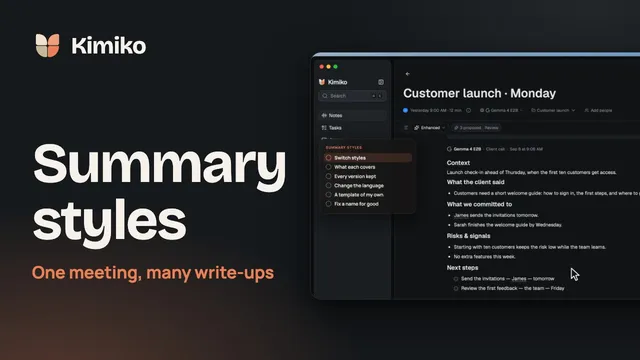
- Open the summary. Once an AI model is set up (Built-in AI or a provider), summaries generate automatically when a meeting completes. You’ll find yours in the Enhanced view, next to My notes. New summaries use General, the closest match to the minutes format above.
- Pick another template if it fits better. Open the options menu on Enhanced and choose under Style. Picking one regenerates the summary, and sections with little to say are left out.
- 1:1: Headlines, Their topics & concerns, My topics, Feedback exchanged, Agreements & follow-ups, For next time.
- Client call: Context, What the client said, What we committed to, Risks & signals, Next steps.
- General: TL;DR, Key points, Decisions, Action items, Open questions.
- Interview: Candidate snapshot, Evidence by area, Concerns, Candidate’s questions, Follow-ups.
- Standup: By person (yesterday, today, blockers), Blockers, Cross-team mentions, Action items.
- Review the action items. Kimiko proposes tasks from the transcript in the Tasks pane. Choose Keep for real commitments and Dismiss for the rest, then set an Assignee, Date or Deadline. The assignee is a label for your own tracking, and nobody is notified. Each proposal links to where it was said.
- Check and share. Read the summary against the transcript, especially names, numbers and commitments. Then choose Export… in the meeting’s ⋯ menu and save a PDF, Word or Markdown file with the AI summary, Notes or Transcript. Exports always include the meeting’s title, date and duration, and they are ordinary documents outside Kimiko’s encrypted database.
The first meeting and tasks guides cover each step in more detail.
Make this template your own in Kimiko
Built-in templates can’t be edited, but you can duplicate one and change the copy, or start a new template with the minutes format above.
- Open Settings → AI, then Summaries → Templates.
- Choose New, or Duplicate a built-in template such as General.
- Enter a Template name, such as “Meeting minutes”, and list the sections you want: purpose, discussion, decisions, action items with owner and due date, open questions and next meeting. You don’t need to add the transcript or your notes, because Kimiko always includes them.
You can’t choose a default template: new summaries use General, so pick another template under Style in each meeting (picking regenerates the summary). Templates you made show “(yours)” after the name.
For minutes in another language, change Settings → AI → Summary & task language, which is set to Same as meeting by default, or pick a Language for one meeting from the same Enhanced menu. Summaries can be written in ten languages; transcripts aren’t translated.
Questions
What should meeting minutes include?
Meeting minutes should include the meeting name, date, attendees and purpose, a short summary of the discussion, the decisions made, action items with an owner and due date, open questions and the next meeting. Decisions and action items matter most, because they are what people act on.
What is the difference between meeting notes and meeting minutes?
Meeting notes are usually personal: what you wanted to remember. Minutes are the shared record, written so someone who missed the meeting knows what was decided and who is doing what.
Can Kimiko write meeting minutes for me?
Kimiko drafts them. Once an AI model is set up, it writes a summary automatically when a recorded meeting completes, using General unless you pick another template, and proposes tasks from the transcript. You review the summary, keep the tasks that are real commitments, and share the result.
Should I tell people I’m recording the meeting?
Yes. Say so at the start, so everyone taking part knows. In Kimiko, meeting audio is not saved by default: the transcript can stay in your library without the original recording.
Try Kimiko on your next call: it’s free to try, no credit card needed.
 Download for Windows