 Kimiko
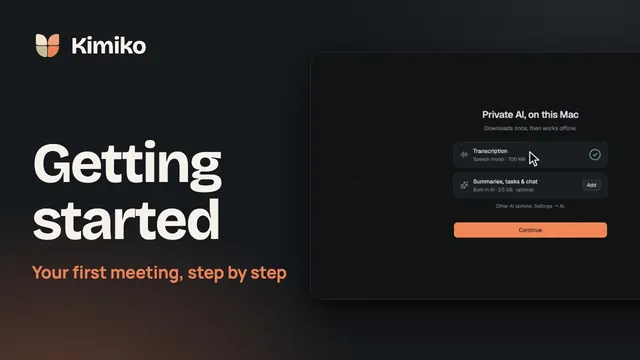
Kimiko is a desktop meeting note taker for Apple silicon Macs (macOS 14.4 or later) and 64-bit Windows 11 PCs. It runs beside your call app, so no extra participant shows up in the meeting.
How Kimiko takes notes without joining the call
Kimiko stays on your computer and records two things: your microphone for your side, and system audio for everyone else on the call. That way it works alongside the Zoom app and Google Meet in a browser with no meeting bot or service integration. When Kimiko recognizes the call, it records only that app’s audio plus your microphone, so sounds from other apps stay out of the transcript.
By default, transcription and summaries run on your computer, using models you download during setup. Cloud speech and AI providers are optional and use your own account. Local processing still needs the internet for downloads, updates, activation and subscription checks. Meeting audio isn’t saved to disk unless you choose a period in Settings → Transcription → Keep session audio. More in how Kimiko handles your data.
Before your first call: permissions and audio
Setup asks for access. Later, Settings → Permissions shows what Kimiko can use, with Allow, Open Settings or Test on each row.
- On Mac: allow Microphone and System audio. In System Settings, Kimiko’s system audio switch sits under System Audio Recording Only on macOS 15 and later, or Screen Recording on macOS 14. If macOS needs a restart, choose Restart Kimiko.
- On Windows: allow microphone access. Computer audio needs no separate permission. If the mic is blocked, Settings → Permissions names the Windows switch that’s off.
Then check three things:
- The call plays through this computer. Other people’s voices reach Kimiko through system audio, so the call has to play on this computer. On Mac, play any sound and choose Test on the System audio row.
- The right microphone. Pick it in Settings → Transcription → Input device. On Mac, a specific mic turns off echo cancellation, so use System default if you take calls on speakers.
- Bluetooth headsets. A Bluetooth mic switches your headset to call-quality sound while recording. Pick another mic to avoid that.
Record a short test call and check that both sides appear. The audio and permissions guide has the details.
Start recording a Zoom or Google Meet call
- Keep Kimiko running. It lives in your menu bar on Mac and your system tray on Windows, and meetings are only detected while it runs. Start Kimiko at login in Settings → General keeps it ready.
- Join the call in Zoom or Google Meet as usual.
- Choose Start. When Kimiko notices the call, a prompt appears. For the Zoom app it says Meeting detected; for a Meet tab it usually says Using the microphone, and a call that matches your calendar shows the event’s title instead. The arrow beside Start offers Always record for that app, or Ignore.
- If no prompt appears, start it yourself. Choose Record a meeting note on the Notes page. If you’ve connected Google Calendar or Microsoft Outlook (optional), Coming up lists today’s and tomorrow’s meetings with Join and Record.
- Check the transcript. Words should appear for You and for the other side.
Detection notices when an app starts using your microphone, the same signal behind the orange dot in the Mac menu bar or the mic icon in the Windows system tray. Kimiko never listens to detect a meeting, and on Mac detection needs no permission. It may not catch every call, so treat the prompt as a convenience. Always record starts on its own, with 10 seconds to undo.
With no bot in the call, it’s up to you to tell people you’re recording. Settings → Privacy & data → Consent has a Consent announcement to paste in the meeting chat or say at the start. Consent rules vary by jurisdiction, so check what applies to you.
Google Meet in the browser: what changes
A browser tab could be anything, so one rule covers every browser and a detected browser call asks before recording.
To let Meet calls start on their own, turn on Check browser window titles in Settings → Detection, then set the browser rule to Always record. Kimiko reads window titles only. On Mac, macOS asks for Screen Recording to allow it, and the new access applies after Kimiko restarts. Always record then starts only on recognized meeting tabs; other tabs still ask.
| Zoom desktop app | Google Meet in a browser | |
|---|---|---|
| What Kimiko notices | Zoom starts using your mic | Your browser starts using your mic |
| What it records | Your mic and Zoom’s audio | Your mic and your browser’s audio |
| Starting on its own | Always record for Zoom | Always record for browsers, with Check browser window titles on |
| Extra Mac permission | None for detection | Screen Recording, only if you turn on window titles |
During and after the call
Write your own notes in Kimiko while the transcript fills in; they’re timestamped. If the call fills your screen, press ⌘⇧K on Mac or Ctrl+Shift+K on Windows (Quick notes) to open a compact notes window from any app. What you type there attaches to the current recording, and it keeps working after you stop until the next recording starts. Change the key in Settings → General → Keyboard shortcuts.
Your microphone appears as You, and an on-device model can tell apart up to eight remote voices. Labels can be wrong when people talk over each other, so rename a speaker when you know who it is.
- Mute microphone in Kimiko for a side conversation while system audio keeps recording. It doesn’t mute you in Zoom or Meet, so mute there too.
- Live summaries are on by default, with a running recap every 5 minutes; change or turn them off in Settings → Transcription → Meetings. They need an AI model in Settings → AI, separate from the speech model.
- Stopping: a recording started from a detected call stops when the call app releases the mic, or after the time set in Stop after silence. One you started yourself runs until you choose Stop.
Afterwards, switch between My notes and Enhanced to compare your notes with the AI version, and check names, numbers, dates and commitments against the transcript before sharing. In the Tasks pane, Keep the next steps you want to track and Dismiss the rest. Ask follow-up questions in chat and follow the source links back to the conversation, or use Export… for PDF, Word or Markdown.
Fix common problems with Zoom and Meet
- Other people are missing. Confirm the call plays through this computer, and on Mac run the System audio test. A No system audio yet alert can simply mean nobody has joined. Otherwise, on Mac, turn Kimiko on in the macOS setting the alert names; on Windows, if sound is playing, stop and start the recording.
- Your voice is missing. Check whether You shows Muted, then check microphone access and Input device.
- The same words appear twice. Try headphones and check Echo cancellation in Settings → Transcription.
- No prompt appeared. Make sure Kimiko is running and Detect meetings is on and not paused in Settings → Detection. Start the recording yourself meanwhile.
- Other sounds in the transcript. If an amber speaker icon appears in the meeting header, Kimiko couldn’t capture the call app alone and is recording all system output except its own. Mute anything you don’t want transcribed.
More fixes are in troubleshooting.
Questions
Does a bot join my Zoom or Google Meet call?
No. Kimiko records your microphone and computer audio on your own Mac or PC, so no extra participant appears in the meeting. Since nobody sees a bot, tell people you’re recording.
Why does Kimiko ask before recording Google Meet?
A browser tab could be anything, so Kimiko asks first. To let Meet calls start on their own, turn on Check browser window titles in Settings → Detection and set the browser rule to Always record.
Does my meeting audio leave my computer?
Not by default. Transcription and summaries run on your computer, and meeting audio isn’t saved to disk unless you choose a period in Keep session audio. If you choose a cloud speech provider with your own account, meeting audio goes to that provider.
Which languages can Kimiko transcribe?
That depends on the speech model you choose in Settings → Transcription. Auto-detect handles mixed languages, and you can change the language for one meeting with the language pill while recording. See which languages Kimiko supports.
Kimiko is free to try, no credit card needed: download it and take notes on your next call.
 Download for Windows