 Kimiko
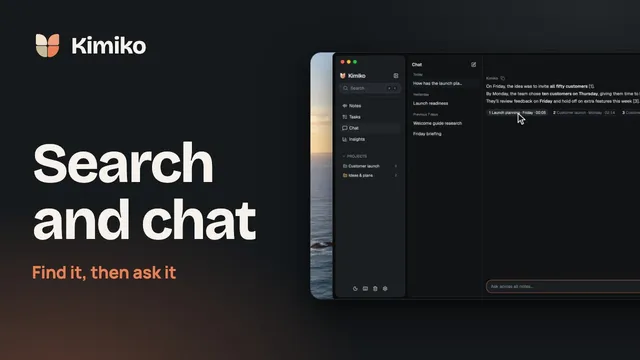
You can ask Kimiko questions about your meetings and notes in plain language. Start with one meeting, widen to a project when a topic runs across several calls, and ask your whole library when you can’t remember where something came up.
Answers are written by the AI model you set up. If you add Built-in AI during setup, Kimiko answers on your computer. A cloud AI provider is optional and uses your own account.
Choose what Kimiko looks at
Every question has a scope: the notes Kimiko searches for the answer. A meeting’s own chat starts with that meeting. The Chat page in the sidebar already searches every note in your library.
To change the scope, type @ in the chat box and pick a project or specific notes. In a meeting’s chat, the list also offers All notes. Your picks appear as chips above the box, and you can remove one before you send.
| Scope | How to choose it | Good for |
|---|---|---|
| One meeting | Open the meeting. Its chat box reads Ask about this meeting… | A decision, detail or next step from one conversation |
| Specific notes | Type @ and pick them under Notes | Comparing two meetings, or a meeting with your prep notes |
| A project | Type @ and pick the project | Changes and context across related meetings and notes |
| Your library | The Chat page, or All notes in a meeting’s chat | Finding something when you don’t know which meeting it was in |
Start with the smallest scope that contains what you need. If you file related meetings and notes in a project, you can ask across all of them at once.
You can also start from Search: type your question and choose Ask Kimiko to send it to Chat.
Ask questions that point somewhere
A good question names one thing. Add the project or topic when several conversations could match. Chat doesn’t work out dates, so when you mean a particular call, @-mention that meeting first. Some examples:
For decisions:
- “What did we decide about the pricing page?”
- “Who agreed to own the onboarding emails?”
For follow-ups:
- “What did I promise to follow up on?”
- “What did we agree to send before Friday?”
For what changed between meetings, @-mention the meetings first:
- With two launch meetings added: “How did the launch plan change between these meetings?”
- With one customer call added: “Which questions from this call are still open?”
The Chat page offers two starters, What did I promise to follow up on? and What did we decide about…. Clicking one puts it in the box without sending it, so you can finish the sentence first.
Once a recorded meeting has finished, type / in its chat for ready-made prompts. TL;DR asks for three to five bullets, decisions first, then open questions. List my todos asks for a checklist of what you agreed to do or were asked to do, with due dates if they came up.
Follow the source back to the transcript
When an answer cites a meeting, the citation names the meeting and a time in the recording. Select it to open the moment it came from, then read what was said around that point, especially when a decision matters or the answer seems incomplete.
A question sent with a project or All notes in scope shows a chip such as All notes or the project’s name. When you come back to a conversation later, you can tell which scope produced the answer.
The Chat page keeps its conversations in a list grouped by date, where you can rename or delete them.
Ask during a live call
You can ask while a meeting is still recording. Kimiko answers from the transcript captured so far and the live summaries, so you can check what has been agreed without scrolling back.
- Open the meeting that is recording. In Search, Open the current recording takes you there.
- Ask in the meeting’s chat, for example “What have we agreed so far?” or “What did they say about the budget?”
- To keep the chat beside the transcript, choose Pin chat to the side. A narrow window may not have room for it.
- To check an earlier decision, type @ and add the project or your prep notes. Kimiko looks at them alongside the current conversation.
Live summaries are on by default and add a recap every 5 minutes. You can change the interval or turn them off in Settings → Transcription → Meetings.
Draft a follow-up email from chat
After the recording finishes, open the meeting’s chat, type / and choose Draft follow-up email. It asks for a concise recap email, ready to paste: a one-line thanks, what was discussed and decided, action items with owners, and next steps. These prompts aren’t offered during the call or in a plain note.
Kimiko drafts the email and you send it. Choose Copy answer, paste it into your email app, and read it through first. Check every name, owner and date against the transcript before it goes to anyone.
If the draft needs changes, ask in the same conversation: “Make it shorter” or “Leave out the budget discussion”.
Limits worth knowing
Answers draw on the most relevant passages. Kimiko searches your scope for passages that match your question, and the AI model writes its answer from them: at most 12 passages, with no more than 3 from any one meeting. It may not find every relevant note, and it doesn’t search the web, your screenshots or your tasks.
Check important names and numbers in the source. The chat beside a meeting reminds you: “Kimiko uses AI and can make mistakes.” Confirm names, numbers, dates and commitments in the cited transcript before you rely on them. When you ask for every decision or task in a project, open the sources before you treat the list as complete.
Scopes have limits. One message can include up to 4 notes and 1 project, and All notes can’t be combined with a project.
A meeting’s chat is one thread. It isn’t listed on the Chat page, and New chat clears it. Chats can’t be exported or shared; Copy answer copies a reply when you want it elsewhere.
New meetings need to be indexed. A meeting that is still processing may not show up in project or library answers yet. Settings → AI → Chat search shows indexing status. Until the search model is ready, or while it re-indexes, chat uses keyword search.
The Ask your notes guide covers scopes in more detail, and chat search explains the indexing model.
Questions
Can I ask about all my meetings at once?
Yes. The Chat page in the sidebar searches every note in your library. In a meeting’s chat, type @ and choose All notes. If you know which project the topic belongs to, @-mention the project instead to keep the question to related meetings.
Do my questions and notes leave my computer?
With Built-in AI, chat answers are written on your computer, and your notes, transcripts and chats are stored in an encrypted database there. If you choose a cloud AI provider, the text needed for the answer goes to that provider under your own account. Kimiko still uses the internet for downloads, updates, activation and subscription checks. Your data explains the details.
Why can’t Kimiko find a meeting I just recorded?
It may still be processing or waiting to be indexed. Check that the meeting has finished and belongs to the scope you picked, then look at Settings → AI → Chat search. Try a narrower question or a distinctive word from the conversation.
Can I still ask questions after my trial ends?
Yes. When a trial or subscription ends, your existing meetings and notes stay available to read, search, chat with and export. Recording new meetings, dictation, audio import and retranscription need an active subscription. See pricing.
Which AI model writes the answers?
The model you set up in Settings → AI, which also writes your summaries. In the chat’s model menu, Auto follows that setting and shows where the model runs, such as on this Mac or PC, or in the cloud.
Kimiko is free to try, no credit card needed: download it and ask your first question after your next call.
 Download for Windows