 Kimiko
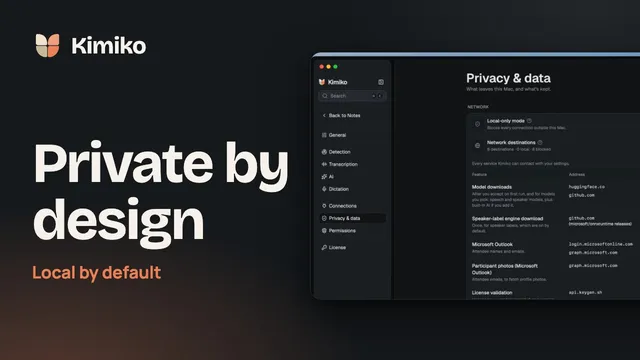
Kimiko records your microphone and your computer’s audio, with no bot in the call, and processes it on your computer by default. Here’s what runs where, what still goes online, and how to check your setup.
How a call becomes notes on your computer
The work happens in four steps, each with its own model:
- Audio to transcript. A speech model you’ve downloaded turns the conversation into a live transcript. The default is Nemotron 3.5 Streaming, and you can compare others, such as Parakeet and Whisper models, in Settings → Transcription → Speech models. The languages you can transcribe depend on the speech model; see languages.
- Who said what. An on-device speaker model labels your microphone as You and can tell apart up to eight other voices.
- Transcript to summary and tasks. A local AI model reads the transcript and your own notes, then writes the summary, a title and suggested tasks. Each task waits for you to choose Keep or Dismiss.
- Answers from your meetings. A separate search model indexes your meetings on your computer, so chat can find passages by meaning. Answers link back to their sources so you can check them.
What “local by default” means
Kimiko starts with local transcription. During setup it also offers Built-in AI for summaries, tasks and chat: choose Add, and it switches on when its download finishes. The models download once, and you don’t need an AI account or API key. Speech, AI and dictation are separate choices. One AI model covers summaries, tasks and chat; chat search always uses its own local search model.
Saving meeting audio and anonymous health signals are both off by default.
Local processing still uses the internet for a few jobs:
- Model downloads, during setup or when you add a model later. Downloading a model doesn’t upload your meetings or calendar.
- Updates. An update check sends only your app version and platform.
- Your license. Activating a key needs a connection. Once you’ve activated a key, Kimiko checks its license shortly after it opens and about once an hour while it runs.
- Anything you connect, such as a calendar, a cloud provider or optional health signals.
See how Kimiko handles your data for the full picture.
Choose the AI that runs on your computer
You have three ways to keep summaries and chat on your computer:
- Built-in AI. Open Settings → AI and choose Built-in AI. Download a model, then select Use. The built-in models come from Google’s Gemma 4 and Alibaba’s Qwen 3.5 families. Gemma 4 E2B is the recommended start, and Qwen 3.5 2B is a smaller download.
- Ollama or LM Studio. If you already run one of them, choose Custom providers in Settings → AI, add its preset from the Add provider menu, select Test, then pick its model under AI model.
- A model file you choose. In the Built-in AI settings, Add a model from Hugging Face takes a GGUF chat model’s repository and file name.
Larger models need more memory and can run slower, so start with one and try it on your usual meetings. Ollama and LM Studio count as local only on the same computer as Kimiko, and Local-only mode blocks servers elsewhere on your network.
What changes when you connect a cloud provider
Cloud providers are optional and use your own account. Requests go straight from your computer to the provider you set up, such as OpenAI, Anthropic or Mistral for AI, or Deepgram or ElevenLabs for speech. Their charges are separate from your Kimiko subscription.
Here’s where each choice lives, and what it sends when you pick a cloud model:
| Feature | Where you choose it | What a cloud choice sends |
|---|---|---|
| Meeting transcription | Settings → Transcription → Speech models | Meeting audio, including everyone’s voices, and imported recordings |
| Summaries, tasks, chat and live summaries | Settings → AI → Custom providers, then AI model | The text and context needed for that task |
| Dictation | Settings → Dictation → Speech model | Everything you dictate |
| Dictation cleanup | Settings → Dictation → Formatting model | Dictated text and any formatting context you’ve turned on |
Before your meeting audio first goes to a speech provider, Kimiko asks you to confirm with Use cloud transcription. Cloud AI has no extra prompt: once you choose a cloud model, the text it needs goes to that provider. With Formatting model on Auto, dictation’s AI formatting follows your AI model too, so with a cloud AI model, your dictated text goes to that provider as well. To bring AI back to your computer, choose Built-in AI at the top of Settings → AI.
Where your notes are kept
Your meetings, transcripts, notes and tasks are saved in a local database that SQLCipher encrypts. The random key that unlocks it is stored separately, in macOS Keychain or Windows Credential Manager, where your API keys are kept too.
- Audio. Keep session audio in Settings → Transcription starts at Off, so audio is never saved to disk and the transcript stays. If you pick a period such as 7 or 30 days, the audio is kept encrypted and deleted when that period ends.
- Voices. If you rename a speaker with Remember this voice checked, Kimiko saves an encrypted voice signature on your computer. It doesn’t keep the audio or upload the signature. Remembering voices is experimental.
- Copies you make. Backups are plain Markdown files that aren’t encrypted, and exports are separate copies. Keep both somewhere you trust.
- Starting over. Wipe all data in Settings → Privacy & data deletes Kimiko’s data on your computer. Exported files, backups and downloaded models are kept.
Check your computer and your setup
16 GB of RAM is a practical starting point for local speech, summaries and chat on an Apple silicon Mac (macOS 14.4 or later) or a Windows PC with dedicated graphics. It isn’t a tested minimum or a performance promise. On a Windows laptop with shared graphics memory, consider 32 GB for more room. On 8 GB, start with cloud speech and cloud AI, then test local features one at a time. Allow at least 10 GB of free SSD space for a first local setup. A model’s download size isn’t the memory it uses while running.
To see what your setup actually uses:
- Open Settings → AI. The selected card shows the model in use, and names the provider when it isn’t built in.
- Open Settings → Transcription → Speech models. The header shows the model you’re using, and cloud models carry a Cloud chip.
- Open Settings → Dictation and check Speech model and Formatting model. Dictation’s speech model is separate from meetings, and Auto formatting follows your AI settings.
- Open Settings → Privacy & data and look at Network destinations. It lists every service Kimiko can contact with your settings, each marked Local or Internet.
- Once downloads and activation are done, you can turn on Local-only mode on the same page to block Kimiko’s network requests outside your computer, while built-in AI and local model servers on that computer keep working.
- Record a short, typical meeting. Check names and numbers, and how long processing takes with your usual apps open.
The docs go deeper on local AI models, speech models and system requirements.
Questions
Does Kimiko work offline?
Yes, after setup. Downloaded speech and AI models can process your meetings without a connection. A subscription’s license is checked online, and when Kimiko can’t reach the license service, it keeps working until the date you’re paid through. See using Kimiko offline.
Do I need an AI account or API key?
No. Built-in AI needs no account or API key, and its models download once. A cloud provider is optional and uses your own account, which that provider bills separately.
Can I use Ollama or LM Studio instead of the built-in AI?
Yes, if it runs on the same computer. Add its preset in Settings → AI → Custom providers, select Test and choose its model under AI model.
Does Kimiko keep my meeting audio?
Not by default. With Keep session audio set to Off, Kimiko transcribes and then discards the audio. If you choose a retention period, the audio is kept encrypted on your computer and deleted when that period ends.
Download Kimiko and try it on your next call. It’s free to try, no credit card needed.
 Download for Windows