 Kimiko
Yes, you can transcribe meetings offline with Kimiko, after a little setup while you’re connected. Kimiko is a desktop meeting note taker for Apple silicon Macs and 64-bit Windows 11 PCs. It records your microphone and computer audio with no bot in the call, and by default it transcribes and summarizes on your computer with models you download once.
Here’s what runs locally, how to prepare, and what still needs the internet.
What runs on your computer
Kimiko uses two kinds of downloaded models. A speech model turns audio into text. An AI model works with that text to write summaries, suggest tasks and answer your questions. Once they’re downloaded, both run on your computer.
- Transcription. Local speech models, such as Nemotron, Parakeet and Whisper, transcribe live meetings and the audio files you import. Which languages you can transcribe depends on the speech model you choose (see languages).
- Summaries, tasks and chat. Built-in AI runs models such as Gemma 4 and Qwen 3.5 on your computer, with no account or API key. If you already run Ollama or LM Studio on the same computer, Kimiko can use those instead.
- Speaker labels. Separating who said what runs on your computer once its model has downloaded.
- Chat search. A separate local search model helps chat find the right meetings. Until it’s ready, chat uses keyword search.
- Dictation. Dictation has its own speech model choice, and it stays on your computer when you pick a downloaded model.
Your notes and transcripts are stored on your computer in an encrypted database.
Start with a computer that can run the models
Local models use your computer’s memory while they work. 16 GB of RAM is a practical starting point for local speech and AI on an Apple silicon Mac with macOS 14.4 or later, or a Windows PC with dedicated graphics. On a Windows laptop whose graphics share the main memory, 16 GB is still a starting point, and 32 GB gives you more room.
Allow at least 10 GB of free SSD space for an initial local setup; 20 GB leaves room to try another model. A model can use more memory while it runs than its download size suggests, so start with the recommended models and test a short meeting before you try larger ones. The system requirements guide has recommendations for each setup.
Set up while you’re online
Do these steps with a working connection, then test before you rely on Kimiko offline.
- Install Kimiko and finish setup. Choose Get started, and the speech model starts downloading. Choose Allow for the microphone, and on a Mac for system audio too.
- Add the local AI. During setup, choose Add beside Built-in AI. Kimiko switches it on when the download finishes.
- Check that each stage is local. In Settings → Transcription → Speech models, make sure the model in use is a downloaded one; cloud models carry a Cloud chip. In Settings → AI, choose Built-in AI. Dictation has its own choice under Settings → Dictation → Speech model.
- Let the extra downloads finish. If you use chat, wait for the model in Settings → AI → Chat search. Speaker labels download their own model too.
- Activate your key, if you’ve subscribed. Paste it in Settings → License and choose Activate. Activation needs the internet.
- Choose what happens to the audio. Settings → Transcription → Keep session audio is Off by default, so audio is never saved to disk. If you’ll want the recording afterward, choose a period, such as 7 or 30 days, before you record.
- Test a short recording. Check that both sides of the conversation appear in the transcript and that the summary finishes.
During a recording, the model picker in the transcript header groups speech models as On-device and Cloud (audio leaves this device), so you can see at a glance where your audio goes.
What needs an internet connection
After setup, the work on your meetings can run offline. Anything that brings new files onto your computer, or talks to another service, needs a connection.
| Task | Without internet |
|---|---|
| Record and transcribe a meeting | Works with a downloaded speech model |
| Transcribe an audio file you import | Works with a downloaded speech model |
| Summaries, suggested tasks and chat | Works with Built-in AI, or Ollama or LM Studio on the same computer |
| Speaker labels and dictation | Work with downloaded models |
| Read, search and export your notes | Works |
| Download models and app updates | Needs a connection |
| Activate a license key | Needs a connection |
| License checks | Need a connection; a subscription keeps working offline for a set time (see below) |
| Cloud speech or AI providers | Need a connection, and send audio or text to that provider |
| Calendar sync and Import from link… | Need a connection |
An online call still needs its own connection. Kimiko’s part of the work, the transcript, summary and tasks, is what runs locally.
Block connections with Local-only mode
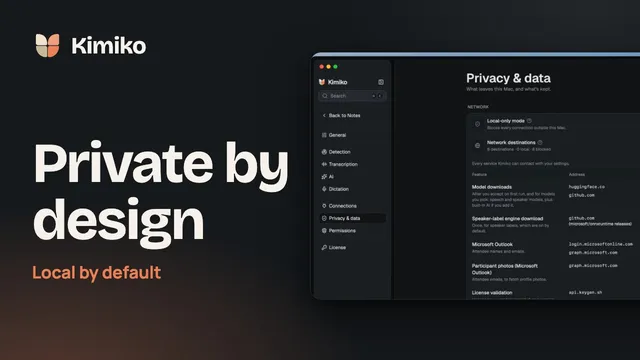
Local-only mode, in Settings → Privacy & data, blocks Kimiko’s connections to anything outside your computer. Built-in AI and model servers on the same computer keep working, while cloud providers, model downloads and servers elsewhere on your network are blocked. Finish your downloads and activation before you turn it on, and keep in mind that it doesn’t extend your license. The privacy guide has the details.
How long your license works offline
Once you’ve activated a key, Kimiko checks your license online, shortly after it opens and about once an hour while it runs. When it can’t reach the license service, your subscription keeps working offline until the date it’s paid through, and Settings → License shows Licensed offline until that date. Then comes a renewal grace period (14 days, per the license guide): Kimiko shows Renewal pending with the date recording works until, so go by the date Kimiko shows. After that, Kimiko switches to view-only mode until it can check again.
Local-only mode pauses license checks, so the same dates apply while it’s on. The free trial works offline too.
View-only mode keeps everything you have: your meetings and notes stay available to read, search, chat with and export. Recording, dictation, audio import and retranscription come back after a successful license check. Before a long stretch offline, connect once and open Settings → License to see the date you’re paid through. The license guide has the full rules.
Questions
Can I transcribe a meeting with no internet at all?
Yes, once setup is done. With a downloaded speech model and Built-in AI, Kimiko can transcribe, summarize and suggest tasks on your computer without a connection. Download your models and activate any license key while you’re online, then test a short recording before you need it.
Does Kimiko save the audio of my meetings?
Not by default. Keep session audio in Settings → Transcription starts at Off, so Kimiko transcribes without saving the audio to disk. If you choose a period before you record, the audio is kept encrypted on your computer and deleted when the period ends. Kept audio is what lets you use Re-transcribe later.
Can I import a recording and transcribe it offline?
Yes. Import audio file… uses your meeting speech model, so the file is transcribed on your computer when that model is a downloaded one. Import from link… has to fetch the recording first, so it needs a connection and is blocked in Local-only mode.
Does local processing mean Kimiko never goes online?
When transcription and AI both use local models, Kimiko processes your meetings on your computer. It still connects for model downloads, updates, activation and license checks, and for any cloud provider or calendar you connect. To block all of that, turn on Local-only mode, and see your data for what Kimiko keeps and where.
Kimiko is free to try, no credit card needed, so download it and take local notes on your next call.
 Download for Windows